
The Complete Automation Partners AI Setup Guide| From Domain to Email Configuration
Introduction
Setting up your account on Automation Partners AI is an exciting step toward automating and streamlining your business. This guide covers everything you need to know about configuring your domain, setting up email services, and other essential setup tasks. Let’s get your account up and running smoothly!
Step 1: Logging Into Automation Partners AI
The first step in setting up your Automation Partners AI account is logging in and familiarizing yourself with the dashboard.
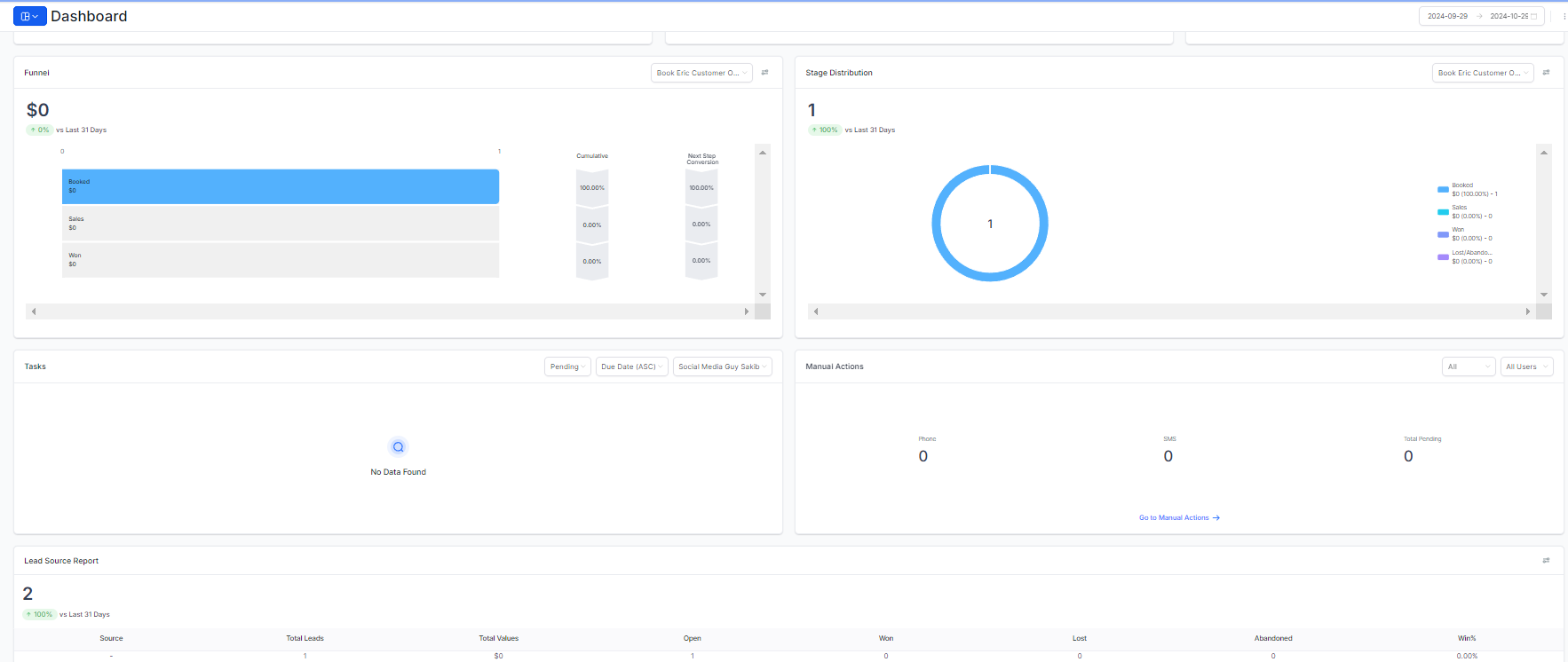
Access the Dashboard: Log in to your account at Automation Partners AI Login.
Complete Profile Setup: Add your personal and business information in your profile section to ensure everything is customized for your business.
Tip: Take the platform’s built-in tour to get a quick overview of the features available.
Step 2: Domain Configuration
Your domain setup will link your website, funnels, and automation activities directly to your brand.
Go to Settings > Domains: In the Automation Partners AI dashboard, navigate to "Settings" and then "Domains."
Add a Custom Domain: Click "Add Domain" and enter your domain name.
Update DNS Settings: Log in to your domain provider (e.g., GoDaddy, Namecheap) and add the required CNAME and A records as directed in the Automation Partners AI setup screen. This ensures that your domain points to the Automation Partners AI platform.
Pro Tip: It may take up to 24 hours for DNS changes to propagate, so make sure to set this up well in advance.
Step 3: Configuring Email Services
To start using email automations and campaigns, you’ll need to configure email services on Automation Partners AI.
Navigate to Settings > Email Services: Go to the Email Services section under Settings.
Select Your Provider: Automation Partners AI integrates with popular providers, but we recommend using Host Armada for reliable SMTP setup.
Verify Domain and Update DNS Records: Your email provider will likely require you to add DNS records for SPF, DKIM, and DMARC verification. These records help improve deliverability by verifying your domain.
Note: Use the provider's setup guide to ensure all DNS records are added correctly for smooth email sending.
Step 4: Calendar Integration

For scheduling and appointment management, Automation Partners AI allows you to integrate your calendar easily.
Go to Calendar Integration Settings: In Settings, find the "Calendar" section.
Choose Your Calendar Provider: Select from options like Google Calendar, Outlook, etc.
Authorize and Sync: Authorize Automation Partners AI to access your calendar, enabling scheduling and automated reminders.
Reminder: Set up availability within Automation Partners AI so clients only book times when you’re available.
Step 5: Testing Your Setup
Testing your setup is crucial to ensure your domain, email, and calendar configurations work properly.
Test Domain Connection: Try accessing your domain to confirm it points to your Automation Partners AI website or funnel.
Send a Test Email: Send yourself a test email to confirm deliverability.
Check Calendar Sync: Book a test appointment to verify the calendar integration and reminder workflows.
Final Tip: Run through a sample workflow to test your automations and ensure everything is connected seamlessly.
Conclusion
Setting up Automation Partners AI LLC correctly is the foundation for effective business automation. By following these steps configuring your domain, setting up email services, and integrating your calendar you’ll be ready to utilize the full potential of Automation Partners AI. Once set up, you can start building workflows, automations, and marketing campaigns to drive your business success.


